# What is Fencyboy?

This page describes what Fencyboy is, how it works and how you may benefit from one.

Fencyboy is a [LoRaWAN](https://en.wikipedia.org/wiki/LoRa#LoRaWAN)-based [IoT](https://en.wikipedia.org/wiki/Internet_of_things) sensor for monitoring electric fences. Fencyboy attaches to an ordinary electric fence as used by many farmers worldwide by connecting a single wire to the fence and another wire to the ground. After the initial setup, Fencyboy analyses every single energy impulse on the electric fence for peak voltage. The results are stored locally until they are transmitted into the cloud periodically.&#x20;

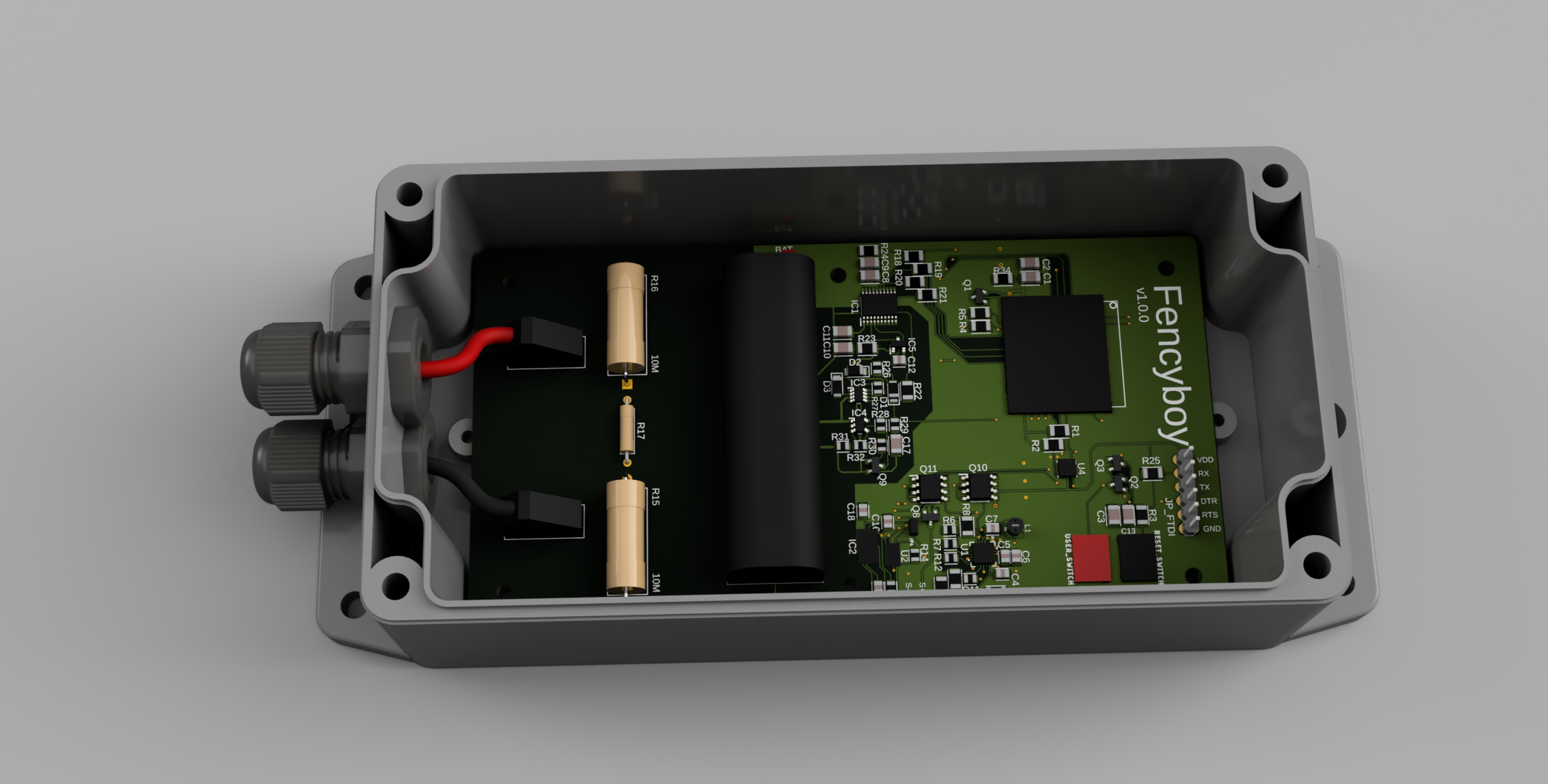
<div align="center"><figure><img src="https://594445183-files.gitbook.io/~/files/v0/b/gitbook-x-prod.appspot.com/o/spaces%2FaLg9ubJIjJX24vscWnqf%2Fuploads%2FvMxOOwbJMVrfa4erYKPp%2FFencyboy-Render.png?alt=media&amp;token=87592c25-c8b5-423e-ab57-4fbebb754a88" alt="3D rendering of a Fencyboy device showing the case and PCB."><figcaption><p>A Fencyboy sensor only has two connections on the bottom side. One for the fence (positive red wire) and one for the earthing rod (ground black wire).</p></figcaption></figure></div>

## How Does an Electric Fence Work?

Electric fencing is used in agriculture to prevent animals from leaving a pasture area and in some cases also to protect them from other animals (e.g. wolves). The fence is not permanently energized, as is often assumed, but only for very short periodic impulses. These pulses usually have a voltage of 5 kV to 20 kV and limited energy of 1 J, for example.

{% content-ref url="/pages/NIKlC6g3hmlSvCXNZoze" %}
[Electric Fence Measurements](/technical-documentation/electric-fence-measurements)
{% endcontent-ref %}

Unfortunately, it is not uncommon for animals to escape from the grazing area despite the fence and cause considerable (financial) damage. Therefore, the electric fence must always function correctly and be regularly checked and maintained. In particular, the environment is a major disruptive factor in the operation of an electric fence, as grasses and bushes grow up to the electrical wires of the fence and reduce the shock effect. In addition, it can happen that a fence is damaged by a fallen branch or tree after a storm. Regular checking of the fence is a tedious task, which is therefore often neglected by farmers.

## Benefits of Fencyoby

Thanks to Fencyboy, a large part of these manual, annoying control tasks are no longer necessary. Because Fencyboy monitors the fence around the clock, it is immediately noticeable when the fence voltage changes. Supplemented by smart notifications and well-designed dashboards, farmers are always up-to-date on the condition of their fence. In addition to monitoring the fence voltage, Fencyboy also measures the ambient temperature and many other parameters.

{% content-ref url="/pages/kJeFCMpHFUfT2xnUTX3u" %}
[Measured Values](/features/measured-values)
{% endcontent-ref %}


# Getting Started

This page contains everything to get your Fencyboy up and running.

## Hardware

<div align="center"><figure><img src="https://594445183-files.gitbook.io/~/files/v0/b/gitbook-x-prod.appspot.com/o/spaces%2FaLg9ubJIjJX24vscWnqf%2Fuploads%2F3QecZeZcNpkUjuDCm9uM%2Ffencyboy-1-2-0-build-3-opened-annotated.jpg?alt=media&amp;token=f6ba23fc-bc30-4d31-a966-4361a21d9b11" alt=""><figcaption><p>After removing the enclosure by unscrewing the 4 screws on the top you'll get access to Fencyboy's main PCB.</p></figcaption></figure></div>

1. Open the enclosure by removing the 4 screws from the outside (using PH2 screw driver).
2. Pull out the main power jumper (the red one in the image above) and place it in the left position to disconnect the battery.
3. Insert the battery with the correct polarity. In the case of a single-use battery-powered version, this will be a larger type D cell LI-SOCL2 battery with 3.6V. Otherwise, with the solar version, a type AA LiFePO4 3.2V battery has to be inserted (as in the image above).&#x20;
4. Move the LED power jumper (the yellow one in the image above) to the left position to connect all LEDs.
5. Cover the solar panel (if any) and press the reset button for 1 second and release it again to make the system ready to start.
6. Move the main power jumper (the red one in the image above) to the right position to power up the device.
   1. With evaluation unit versions (<= v1.3.1) this jumper needs to be connected "in one go". You should place it in one continuous movement without interrupting power. Otherwise, the sensor might end up in a broken state with no active LEDs or measuring a fence voltage of about almost 0V, and you need to reboot it again. See [Known Problems](/faq#known-problems).&#x20;
7. The red LED at the top should light up immediately, indicating power is applied to the system
8. After up to 30 seconds the yellow LED at the bottom should light up for a few seconds indicating the LoRaWAN join procedure.  Afterwards, it will turn off for a moment and turn on again for roughly one second while the sensor transmits the initial configuration. The yellow LED will light up whenever LoRaWAN communication is happening.
9. You should see the join request and an uplink data packet containing the sensor's current configuration in your LoRaWAN server's logs at this moment.
10. You should now **disconnect** the LEDs to save energy because they drain the battery quite quickly. Move the LED power jumper (yellow) to the right position.
11. Thats it! Now you just have to screw the cover back on. Make sure that the seal closes properly to prevent water from getting into the case by putting the 4 screws back in place (using PH2 screw driver).&#x20;
    1. You have to be careful not to overstretch the cover, which can happen if you tighten the screws too much. In that case, you should loosen the screws by about half a turn. Ideally you apply 0.9 Nm to the screws.&#x20;

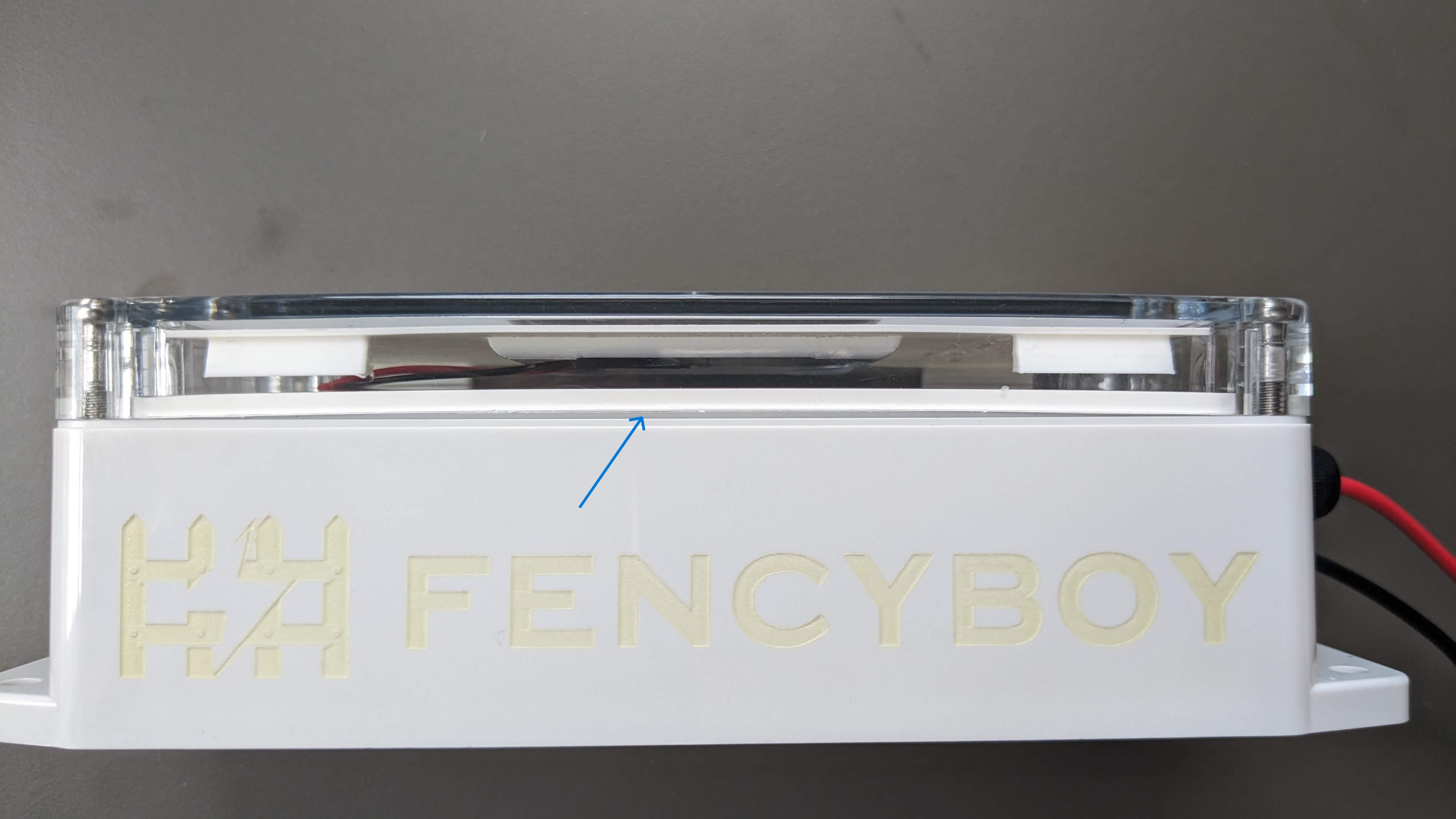
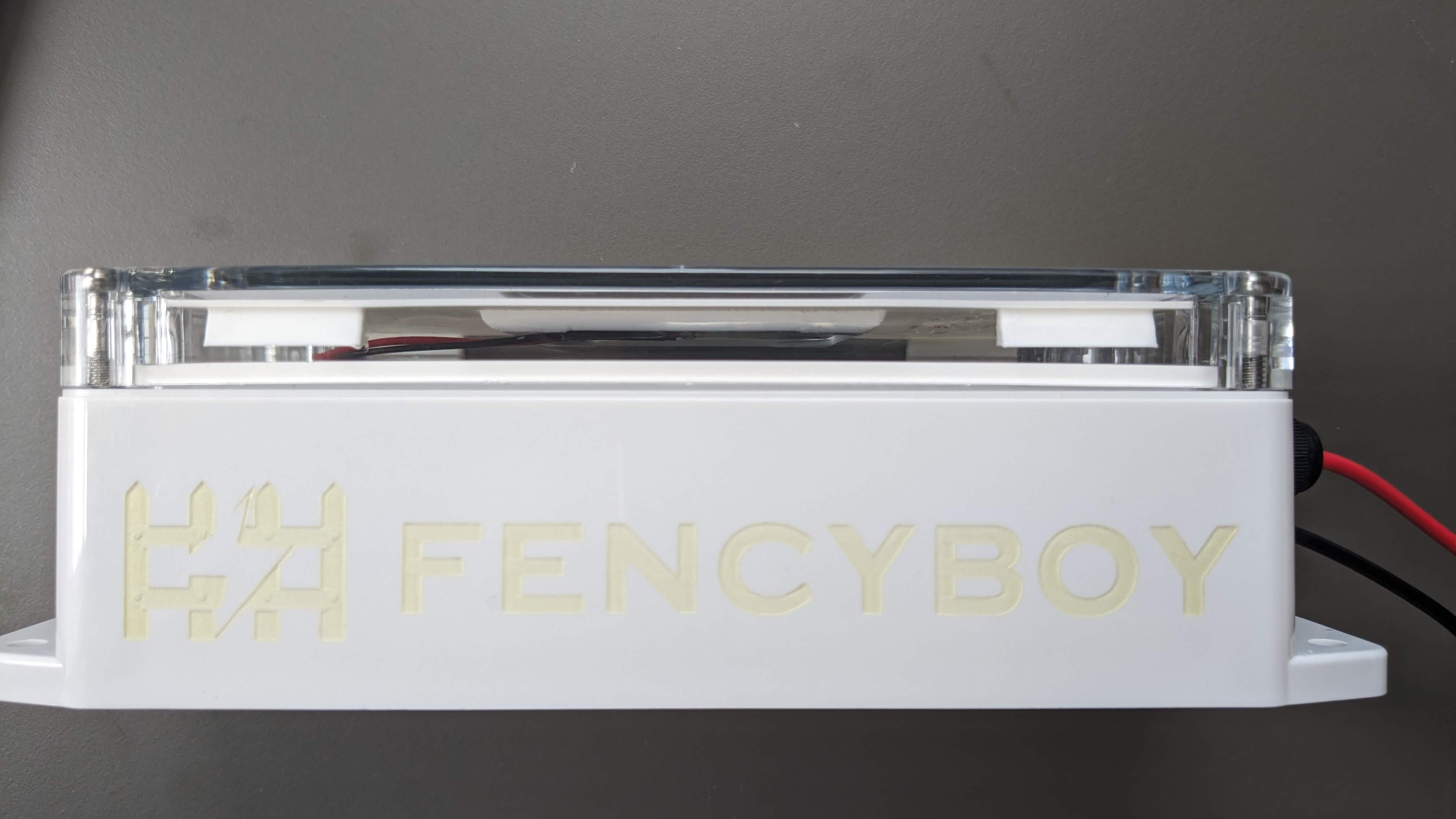
<div><figure><img src="https://594445183-files.gitbook.io/~/files/v0/b/gitbook-x-prod.appspot.com/o/spaces%2FaLg9ubJIjJX24vscWnqf%2Fuploads%2FMcuG8n9usqxapJuj3F9U%2FFencyboy-enclosure-screws-too-tight.jpg?alt=media&amp;token=cd344b0d-eb3c-41a9-bb35-c6857a9e0acf" alt=""><figcaption><p>The screws are too tight. Water may leak inside.</p></figcaption></figure> <figure><img src="https://594445183-files.gitbook.io/~/files/v0/b/gitbook-x-prod.appspot.com/o/spaces%2FaLg9ubJIjJX24vscWnqf%2Fuploads%2FsmIyLd3jjtIp9yVHMnAT%2FFencyboy-enclosure-screws-just-right.jpg?alt=media&amp;token=af20d4cc-eeef-4aef-8503-e7de71bfa870" alt=""><figcaption><p>The screws are perfectly tight.</p></figcaption></figure> <figure><img src="https://594445183-files.gitbook.io/~/files/v0/b/gitbook-x-prod.appspot.com/o/spaces%2FaLg9ubJIjJX24vscWnqf%2Fuploads%2FD1Ch0mV422yMbr9O36b3%2FFencyboy-enclosure-screws-1_5mm.jpg?alt=media&amp;token=c6e38134-4dd2-4f9d-a6c4-dfb263638402" alt=""><figcaption><p>Approximately 1.5 mm gap at the corner.</p></figcaption></figure></div>

If you run into any problems, you should have a look at the [Known Problems](/faq#known-problems) section.&#x20;


# FAQ

This page lists some frequently asked questions and their answers.

#### How long does the single-use battery last?

The single-use battery we recommend (SAFT LS33600) with a capacity of 16Ah will last for over 3 years with a send interval of 10 minutes.&#x20;

#### How often does Fencyboy measure the voltage?

Fencyboy measures every single energy pulse on the fence. With most of the livestock fences we have seen so far, this means 40 measurements per minute. However, the measured values are normally only transmitted in a combined form after a few minutes.

## Known Problems <a href="#known-problems" id="known-problems"></a>

#### The voltage reading shows just 50V, but the fence definitely has a voltage of 1000V+. What’s wrong?

If your **Fencyboy** sensor is showing an incorrect low voltage (e.g., \~50V instead of 1000V+), the sensor likely **did not start correctly**. This can happen if the setup process wasn't followed precisely, especially **Step 5** in the [Getting Started Guide](/getting-started). During startup, the guide requires you to **press the reset button for 1 second and then release it**, preparing the system to start correctly. If this step is skipped, the sensor may not initialize properly, leading to incorrect voltage readings.

#### The Debug LED blinks for 3,5, or 10 times

Blinking of the Debug LED for more than 0.2 seconds indicates an error with the Fencyboy during startup or operation. Please proceed with the following steps because the error is likely caused by a failed initialization of the sensor.

1. Reboot the sensor by disconnecting the battery, wait 3 minutes and follow the [Getting Started Guide](/getting-started) again.&#x20;
2. Contact us and explain the situation. We are happy to help.&#x20;

#### **LEDs don't light up, and there is no LoRaWAN communication after battery insertion**

​The sensor does not turn on correctly if it senses a power interruption during startup. This can happen if the battery power jumper is not inserted in one straight motion. Especially with the solar variant, this can be a problem.​To recover from this, you should remove the red power jumper and cover up the solar panel and wait for 3 minutes for the system to fully discharge. Then try again to insert the power jumper in one continuous motion to power up the sensor. You should see all 4 LEDs light up simultaneously, followed by the normal starting sequence with LoRaWAN join, etc.


# Measured Values

This page describes all the values measured and made available by Fencyboy.

The table below lists all values that are included in a data packet from Fencyboy. Note that not all of these values are transmitted all the time. Take a look at the packet decoder for details.

| Name                | Value range   | Description                                                                                                                                                                |
| ------------------- | ------------- | -------------------------------------------------------------------------------------------------------------------------------------------------------------------------- |
| ACTIVE\_MODE        | True or False | This flag indicates whether the fence is energized or not.                                                                                                                 |
| IMPULSES            | integer ≥ 0   | The number of measured pulses since the last transmission.                                                                                                                 |
| FENCEVOLTAGE        | float ≥ 0.0   | The arithmetic mean of the measured voltages of all pulses since the last transmission. This value is given in volts.                                                      |
| FENCEVOLTAGEMIN     | float ≥ 0.0   | The minimum measured voltages of all pulses since the last transmission. This value is given in volts.                                                                     |
| FENCEVOLTAGEMAX     | float ≥ 0.0   | The maximum measured voltages of all pulses since the last transmission. This value is given in volts.                                                                     |
| FENCE\_VOLTAGE\_STD | float ≥ 0.0   | The standard deviation from the arithmetic mean of all measured voltages of all pulses since the last transmission. This value is given in volts.                          |
| TEMPERATURE         | float         | The current ambient temperature in °C, measured in the housing of the Fencyboy.                                                                                            |
| BATTERYVOLTAGE      | float ≥ 0.0   | Current voltage of the battery in the Fencyboy in Volts. This is not the voltage of the battery that might be used to power the electric fence.                            |
| REMAINING\_CAPACITY | float ≥ 0.0   | The remaining charge of the battery in mAh. The battery can usually not be used to full discharge (0 mAh). This value must be reset via a downlink after a battery change. |


# Downlinks

This page describes all LoRaWAN downlinks supported by Fencyboy. You can use them to configure and manage a Fencyboy device remotely.

Fencyboy supports several downlink commands to change [config settings](/technical-documentation/config), manage the lifecycle (e.g. restart the device) and get debug information. Fencyboy accepts the commands on downlink port 2. Some commands require additional parameters, which are validated on the client side. The following table lists all currently supported downlink commands.

| Description                                                                                          | Opcode | Parameter                                                                                                                                                                                                                                                    |
| ---------------------------------------------------------------------------------------------------- | ------ | ------------------------------------------------------------------------------------------------------------------------------------------------------------------------------------------------------------------------------------------------------------ |
| Restart device                                                                                       | 0x10   | One uint16 (2 bytes, Big-endian) encoding the delay before restarting the device in minutes. For example sending 0x100005 restarts the device in 5 minutes.                                                                                                  |
| Get time till restart                                                                                | 0x11   | Returns the time until the next periodic or forced restart happens in minutes as a single uint16 (See Restart device 0x10). No Parameter required.                                                                                                           |
| Cancel next restart                                                                                  | 0x12   | Cancel the next upcoming periodic or forced restart. The device will not reboot after issuing this command. No Parameter required.                                                                                                                           |
| Set periodic restart interval in config and restart timer                                            | 0x13   | One uint16 (2 bytes, Big-endian) encoding restart interval in minutes (0x134EC0 sets it to the default of 20160 minutes, i.e., 2 weeks). A value of 0 disables the periodic restart (0x130000). The timer is restarted with the new value with this command. |
| Set [transmission interval](/technical-documentation/config#send-interval) (send interval) in config | 0x80   | One uint8 (1 byte) encoding the transmission interval length in minutes minus 1. For example sending 0x8004 will set the interval to 1+4=5 minutes.                                                                                                          |
| Set expected time between impulses in config                                                         | 0x81   | One uint16 (2 bytes, Big-endian) encoding the expected time between impulses in milliseconds. For example sending 0x8103E8 sets the time to 1000ms.                                                                                                          |
| Set voltage divider multiplier in config                                                             | 0x82   | One IEE-754 float (4 bytes, Big-endian) encoding the multiplier as decimal value. For example sending 0x8245a14000 sets the multiplier to 5160.                                                                                                              |
| Set smart sleep status in config                                                                     | 0x83   | One uint8 (1 byte) encoding a boolean value to activate or deactivate the [smart sleep](/technical-documentation/smart-sleep) feature. For example sending 0x8301 activates the smart sleep feature.                                                         |
| Set battery full capacity in config                                                                  | 0x84   | One uint16 (2 bytes, Big-endian) encoding the battery cpacity in mAh. For example sending 0x840258 sets the capacity to 600mAh which is the standard value for the solar variant.                                                                            |
| Save config to EEPROM                                                                                | 0x90   | -                                                                                                                                                                                                                                                            |
| Load config from EEPROM                                                                              | 0x91   | -                                                                                                                                                                                                                                                            |
| Get currently used config via LoRaWAN uplink                                                         | 0x92   | -                                                                                                                                                                                                                                                            |
| Reset config to default values                                                                       | 0x93   | -                                                                                                                                                                                                                                                            |
| Save currently used battery capacity to EEPROM                                                       | 0xA0   | -                                                                                                                                                                                                                                                            |
| Reset used battery capacity in EEPROM                                                                | 0xA1   | -                                                                                                                                                                                                                                                            |

## Sending Multiple Commands

Fencyboy supports multiple commands in one downlink request. You can add up to `16` bytes of commands and parameters in a single request. The request is ignored if you exceed this limit. All commands in your request are processed sequentially. Some common sequences of commands are listed below.

### Updating the Transmission Interval Permanently

If you want to permanently change the transmission interval, you can make use of a combination of three commands. First, set the new transmission interval using opcode `0x80` to the desired value. Next, save the currently used settings to the EEPROM using opcode `0x90` so that they won't get lost after the device restarts. Finally use opcode `0x92` to get the currently active config to assure that all settings are correct.

```c
// Permanently sets the transmission interval to 15 minutes
0x80149092
```

<figure><img src="https://594445183-files.gitbook.io/~/files/v0/b/gitbook-x-prod.appspot.com/o/spaces%2FaLg9ubJIjJX24vscWnqf%2Fuploads%2FdlJEFb85usJ47JpWqXaE%2Ffencyboy-downlink.jpg?alt=media&amp;token=d3e61d96-c2aa-458f-b5bc-4ca270e475db" alt=""><figcaption><p>You can send a downlink from the things stack web interface using the messaging function.</p></figcaption></figure>

### Save Used Battery Capacity and Reboot

```c
// saves the currently used battery capacity to the EEPROM and reboots the device in 5 minutes
0xA0100005
```


# Comparison with Similar Sensors

## Similar Sensors

<table><thead><tr><th width="155">Name</th><th width="249">Description</th><th width="154">Hardware price</th><th>Disadvantage</th></tr></thead><tbody><tr><td><a href="https://github.com/kiu/lofence">LoFence</a></td><td>Open-Source LoRaWAN sensor with a rechargeable battery. Very similar to Fencyboy.</td><td>DIY for less than 100€</td><td>Parts need to be ordered, assembled and programmed manually. Only measures every ~10 minutes (not every pulse). </td></tr><tr><td><a href="https://www.farmify.com.au/product-page/agriace-electric-fence-sensor">AgriAce Electric Fence Sensor</a></td><td>LoRaWAN based sensor</td><td>$500 AUD</td><td>Cables can easily be unplugged by animals or intruders.</td></tr><tr><td><a href="https://www.luda.farm/products/luda-fencealarm">FenceAlarm - LudaFarm</a></td><td>GSM based sensor.</td><td>around 249€</td><td>Only 2 months on battery (external solar panel possible) and paid cloud subscription</td></tr><tr><td><a href="https://shop.ms-electronics.at/?product_cat=fency-sets">Fency</a></td><td>A 4G/5G based sensor with GPS and the ability to switch an external fence energizer on and off.</td><td>starting at 450€</td><td>Proprietary web dashboard.</td></tr><tr><td><a href="https://www.smartparks.org/product/fenceedge/">FenceEdge</a></td><td>A LoRaWAN based sensor with GPS and an app for configuration via Bluetooth.</td><td>399€</td><td>The internal battery only lasts for a few months but is rechargeable from solar or externally. Additionally, MOQ is 10 units.</td></tr><tr><td><a href="https://www.weidezaun.info/voss-farming-weidezaun-ueberwachung-per-smartphone-set-fuer-1-zaun-fm-20-wifi-1x-sensor.html">VOSS.farming FM20 + Senor(s)</a></td><td>Base station with radio connection to several sensor nodes.</td><td>starting at 430€</td><td>Proprietary Wifi gateway with proprietary cloud</td></tr><tr><td><a href="https://www.farmo.com.au/products/electric-fence?variant=42559526371491">Farmo Electric Fence Sensor</a></td><td>A LoRaWAN or NB-IoT based voltage sensor. </td><td>~370€</td><td>Requires a Farmo subscription.</td></tr><tr><td><a href="https://innovateiot.net.au/product/electric-fence-monitors/">Electric Fence Monitor by InnovateIOT</a></td><td>A NB-IoT based sensor with 3yrs – 5yrs of battery life</td><td>$350.00</td><td>Additional connectivity Fee + Looks like a proprietary web dashboard.</td></tr><tr><td><a href="https://www.ako-agrar.com/de/product/ako-smart-satellite/954930/952328">AKO Smart Satellite</a></td><td>Small battery powered sensor with NB-IoT connectivity and custom app (free to use).</td><td>195€</td><td>Powered by two AA batteries that last for one season. </td></tr><tr><td><a href="https://zaunmonitor.de/">ZaunMonitor</a></td><td>Small solar powered sensor with NB-IoT connectivity. Also known as <a href="https://fenceguard.net/">FenceGuard</a>.</td><td>around 249€</td><td>Requires NB-IoT coverage and cloud subscription. No longer available (2025).</td></tr><tr><td><a href="https://iotforyou.de/Wendelin-Weidezaun-Sensor/9000013">Wendelin Weidezaun-Sensor</a></td><td>A LoRaWAN based sensor that measures the fence voltage without a direct electrical cable connection. It uses an inductive measurement technique.</td><td>299€</td><td>Inaccurate inductive voltage measurement. Offers only average voltage. Has a hole in the enclosure (waterproof?). No longer available (2025).</td></tr><tr><td><a href="https://www.martin-protect.fr/">Martin</a></td><td>Small form factor fence monitor with standard AA batteries that are good for over a year.</td><td>-</td><td>No longer available (2025).</td></tr><tr><td><a href="https://intl.tru-test.com/products/fence-monitoring">Tru-Test Fence Monitoring</a></td><td>Solar powered sensor nodes connecting wirelessly to a gateway or forming a mesh network.</td><td>around $200 USD per Node (+ $300 USD for the Gateway)</td><td>Uses a proprietary 2.4 GHz wireless connection to the gateway or other nodes with up to 500m link distance.  </td></tr></tbody></table>

####

## Conclusion


# Config

### General Config

#### Config Version

This is a unique integer value to indicate the version of the configuration schema. Currently, this is 4.

#### Send Interval

The send interval, or transmission interval, defines the amount of time between uplinks from a Fencyboy device. The default value is 10 minutes.

#### Smart Sleep

This boolean flag enables or disables the smart sleep functionality. See [#smart-sleep](#smart-sleep "mention") for more information.

#### Expected Time Between Impulses

This value configures the expected time between energy impulses on the fence in milliseconds. It is used to guide the control algorithm for smart sleep, and it is also used for the timeout functionality to send an uplink once the fence is turned off. This value defaults to 1000 ms, which is a good value and usually does not need to be changed.

#### Periodic Restart Time

This value configures the time in minutes until the device restarts automatically. By default, this is set to 2 weeks. It can be disabled by setting the value to 0 with a downlink command. This is useful in case you lose the LoRaWAN session for some reason.

#### Voltage Divider Multiplier

The resistor voltage divider on the Fencyboy (the big resistors at the bottom) has a specific ratio that is configured by this value. If one uses resistors with 0% tolerance, this value would be 5130, which is also the default value. However, this value may be adjusted after determining the exact resistor values for maximum accuracy.

### Battery Config

#### Maximum Battery Capacity

The maximum capacity of the battery used by the Fencyboy is hard-coded into the software. This may be 16000 mAh for a SAFT LS33600 battery.

#### Used Battery Capacity

This float value is stored in the EEPROM to track the total energy consumption of the sensor. This value is used to calculate the remaining battery capacity, which is transmitted in the periodic uplinks.


# Energy usage & Battery

Power options for the Fencyboy sensor and battery life

You can power the Fencyboy sensor using one of several energy sources, and you should choose the one that is most suitable for your conditions. In general, the sensor consumes very little energy because it is heavily optimized for low-power operation but still requires some energy for processing and wireless transmission of the data. You can always replace the battery by yourself using normal tools.

1. **Single-use Battery:** with a runtime of more than 3 years thanks to a special outdoor IoT battery that's specifically designed to withstand extreme temperatures. We use Lithium Thionyl Chloride (Li-SOCl2) Batteries with a nominal voltage of 3.6 V and a capacity of 16 Ah to 19 Ah in a single size D cell. We recommend [Saft LS 33600](https://saft4u.saft.com/en/download_file/5241def1-8668-4a68-9d2e-820bd3c68589/English).
   1. **AA Lithium batteries:** can be used for seasonal operation of the Fencyboy with a lifetime of 6-12 months. You will need two AA lithium batteries with a nominal voltage of 1.5 V and a capacity of 3000 mAh. This can be very useful to monitor fences used in the mountains, like the Swiss Alps.
2. **Solar Powered:** with a small rechargeable battery to power Fencyboy throughout the night and keep it running in weeks of darkness. We use a lithium iron phosphate battery (LiFePO4) battery that gets charged using a outdoor rated small solar panel mounted on the outside of the enclosure. The battery has a nominal voltage of 3.2 V and a capacity of 600 mAh within a single size AA cell. We recommend an IFR 14500 battery.

<div><figure><img src="https://594445183-files.gitbook.io/~/files/v0/b/gitbook-x-prod.appspot.com/o/spaces%2FaLg9ubJIjJX24vscWnqf%2Fuploads%2FOv8O1xx8BPj8IW2Yqkfn%2Ffencyboy-solar-powered.webp?alt=media&amp;token=c50977a2-3c8e-4779-9a14-85b395acd2f2" alt=""><figcaption><p>Solar panel + rechargeable battery</p></figcaption></figure> <figure><img src="https://594445183-files.gitbook.io/~/files/v0/b/gitbook-x-prod.appspot.com/o/spaces%2FaLg9ubJIjJX24vscWnqf%2Fuploads%2FasuDYceyN4oAxaippx32%2Ffencyboy-battery-powered.webp?alt=media&amp;token=52a0a454-5c87-4b28-9392-3d23b0f90a20" alt=""><figcaption><p>Big single-use battery</p></figcaption></figure> <figure><img src="https://594445183-files.gitbook.io/~/files/v0/b/gitbook-x-prod.appspot.com/o/spaces%2FaLg9ubJIjJX24vscWnqf%2Fuploads%2Fj33H0HjPh8wWlbVpPBIZ%2Ffencyboy-1-3-1-AA.webp?alt=media&amp;token=2ab127d1-3de3-48b0-b8e1-6e7133dab4da" alt=""><figcaption><p>Small single-use batteries</p></figcaption></figure></div>

The lifetime of a certain battery can not be predicted with 100% accuracy from the beginning because there are many random factors impacting the lifetime. You can do something about some of them to obtain a longer battery life.

1. LoRaWAN link quality has a major influence on the energy consumption because the device will use more energy if the quality is bad to reach a gateway that's far away. This factor may change dynamically, and the device will adapt to the conditions using LoRaWAN Adaptive Data Rate (ADR).
2. Outdoor temperature has a similar effect on battery life. If it is too cold (especially below -10°C) or if it is too hot (especially more than +40°C), you'll see an increase in energy consumption of the Fencyboy. The system is still going to work fine in these conditions, but be aware that battery lifetime gets reduced. After all, the Fencyboy sensor is built for outdoor operation and works much better than indoor sensors.
3. Electric fence properties such as the frequency of energy impulses or the general on/off state influence the energy consumption as well. The frequency is generally limited to 1 Hz by law, but some energizers reduce the frequency to, e.g., 0.33 Hz (every 3 seconds) to save energy. Additionally, having the electric fence off (the energizer is turned off) will put Fencyoby into a power-saving mode as well, but it will still transmit regularly that the fence is still off (see [Smart Sleep](/technical-documentation/smart-sleep)).

The Fencyboy sensor integrates a precision battery monitoring system to monitor not only the battery cell's voltage but also the current going out of and into the battery. This is done using a battery fuel gauge and lets you see the remaining capacity of the battery in mAh before it is empty. Not only is this useful to predict when the battery needs to be replaced, it is more or less necessary since monitoring just the voltage of a Li-SOCl2 or LiFePO4 battery yields very little insight about the actual state of charge because the voltage stays rather constant for a very long time. Many other IoT sensors used with LoRaWAN or other wireless technologies do not have a fuel gauge chip and rely on voltage measurement.


# Electric Fence Measurements

This page provides our measurement results obtained from real-world fences.

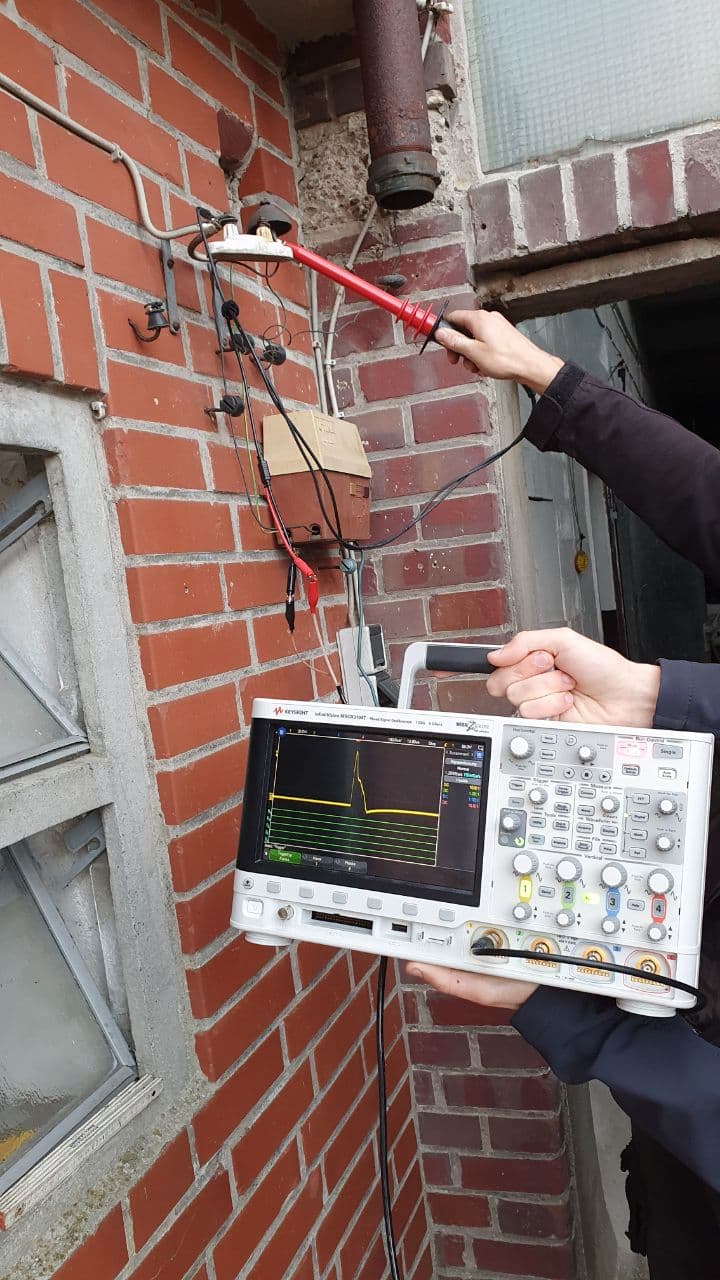
We spared no effort during the development and got some electrical shocks to measure numerous electrical fences manually. To do this, we recorded the characteristics of an energy pulse with the help of a high-quality high-voltage probe and a high-quality oscilloscope.

{% hint style="danger" %}
Do not try to measure an electric fence if you don't exactly know what you're doing. You can seriously damage your valuable equipment.
{% endhint %}

## High-Voltage Probe and Oscilloscope

<div align="left"><figure><img src="https://594445183-files.gitbook.io/~/files/v0/b/gitbook-x-prod.appspot.com/o/spaces%2FaLg9ubJIjJX24vscWnqf%2Fuploads%2FDd68PGwa40gHnHLNkl8w%2Fscoping_fence1.jpg?alt=media&amp;token=faa9bc25-0ff9-4411-b9a9-8cb1e06f713c" alt="" width="540"><figcaption><p>Probing an electric fence energizer right at the start.</p></figcaption></figure> <figure><img src="https://594445183-files.gitbook.io/~/files/v0/b/gitbook-x-prod.appspot.com/o/spaces%2FaLg9ubJIjJX24vscWnqf%2Fuploads%2FPhn2nF5zuXXDX4kivyC5%2Fscoping_fence2.jpg?alt=media&amp;token=641aaaa1-2503-4327-9a81-ac1ace8338fe" alt="" width="540"><figcaption><p>Our mobile setup to take fence voltage measurements using a car battery and 230V inverter.</p></figcaption></figure> <figure><img src="https://594445183-files.gitbook.io/~/files/v0/b/gitbook-x-prod.appspot.com/o/spaces%2FaLg9ubJIjJX24vscWnqf%2Fuploads%2FBWyAlcF2ZxPusibedWbW%2Fprobe_at_fence1(1).jpg?alt=media&amp;token=c21e0d03-d5b4-42b5-bb37-0f0bf4134d4e" alt="" width="540"><figcaption><p>We probed the fence at several different locations and heights.</p></figcaption></figure> <figure><img src="https://594445183-files.gitbook.io/~/files/v0/b/gitbook-x-prod.appspot.com/o/spaces%2FaLg9ubJIjJX24vscWnqf%2Fuploads%2FYEtap7jFyW6SqPai2Cfo%2Fprobe_at_fence3.jpg?alt=media&amp;token=ba2e4f9d-5d9c-4eb3-b8bf-03c179e0e876" alt="" width="540"><figcaption><p>We also got access to a high bandwidth HV probe.</p></figcaption></figure></div>

We went outside and measured the voltage waveform of numerous electrical fences. As we didn't want to fry our expensive oscilloscope, we organized a high-voltage probe for it instead of building one by ourselves. Additionally, we get the confidence that the measured results should at least be somewhat correct. This is important because many steps in the component selection and planning are based on the assumptions we took from these measured results.

## Results

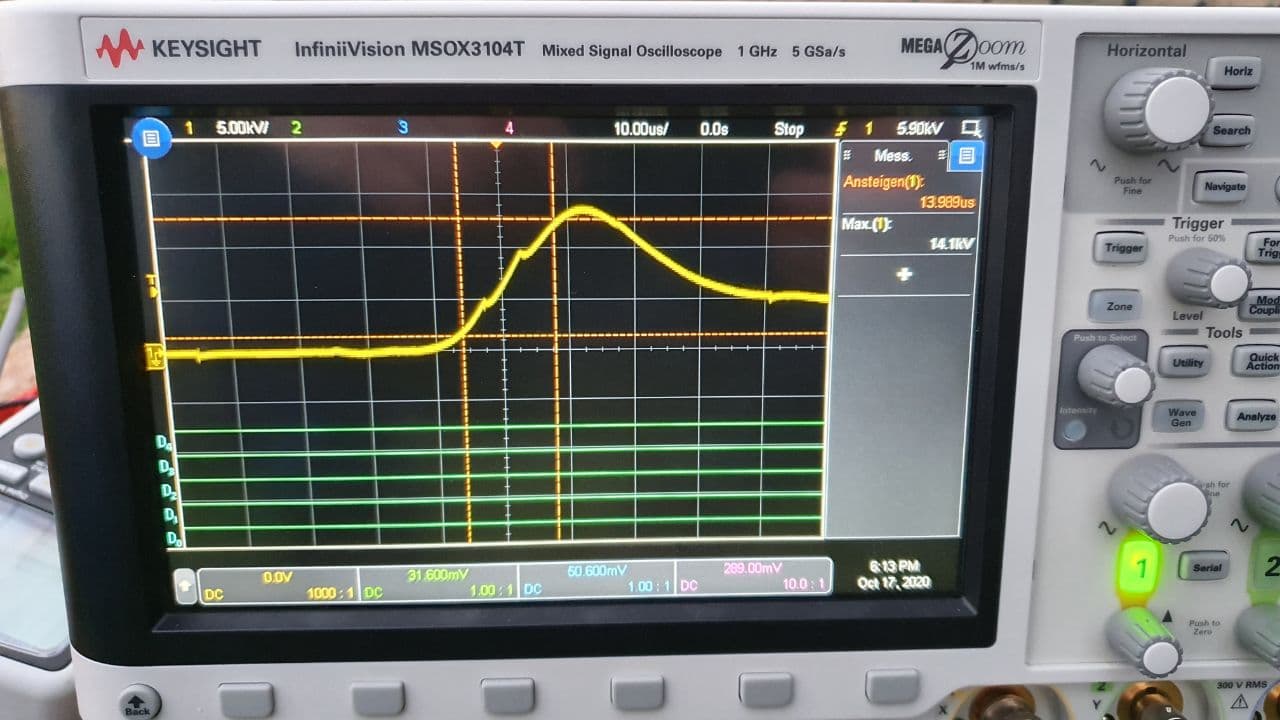
<div><figure><img src="https://594445183-files.gitbook.io/~/files/v0/b/gitbook-x-prod.appspot.com/o/spaces%2FaLg9ubJIjJX24vscWnqf%2Fuploads%2F3S32H9Ckti2Zb3bla09Z%2Ffence_waveform_1.jpg?alt=media&amp;token=cbdf36cf-c2e3-465b-9836-1a4e06aa6e31" alt=""><figcaption></figcaption></figure> <figure><img src="https://594445183-files.gitbook.io/~/files/v0/b/gitbook-x-prod.appspot.com/o/spaces%2FaLg9ubJIjJX24vscWnqf%2Fuploads%2Fr0udScdDEZZTvHsZcKga%2FFence_waveform_2.jpg?alt=media&amp;token=b9d4f29c-4d05-4fe0-8223-ba8805047857" alt=""><figcaption></figcaption></figure> <figure><img src="https://594445183-files.gitbook.io/~/files/v0/b/gitbook-x-prod.appspot.com/o/spaces%2FaLg9ubJIjJX24vscWnqf%2Fuploads%2FwpgLs6DSXDhOIsCU86o4%2Ffence_waveform_3.jpg?alt=media&amp;token=ffbcd96c-53f0-4719-ab6a-e29a1e77539f" alt=""><figcaption></figcaption></figure> <figure><img src="https://594445183-files.gitbook.io/~/files/v0/b/gitbook-x-prod.appspot.com/o/spaces%2FaLg9ubJIjJX24vscWnqf%2Fuploads%2FL6rPg5Y0GMp8jUhoCxXK%2Ffence_waveform_4.jpg?alt=media&amp;token=1ddb18e1-7397-4b25-a97a-f159609aa95e" alt=""><figcaption></figcaption></figure></div>

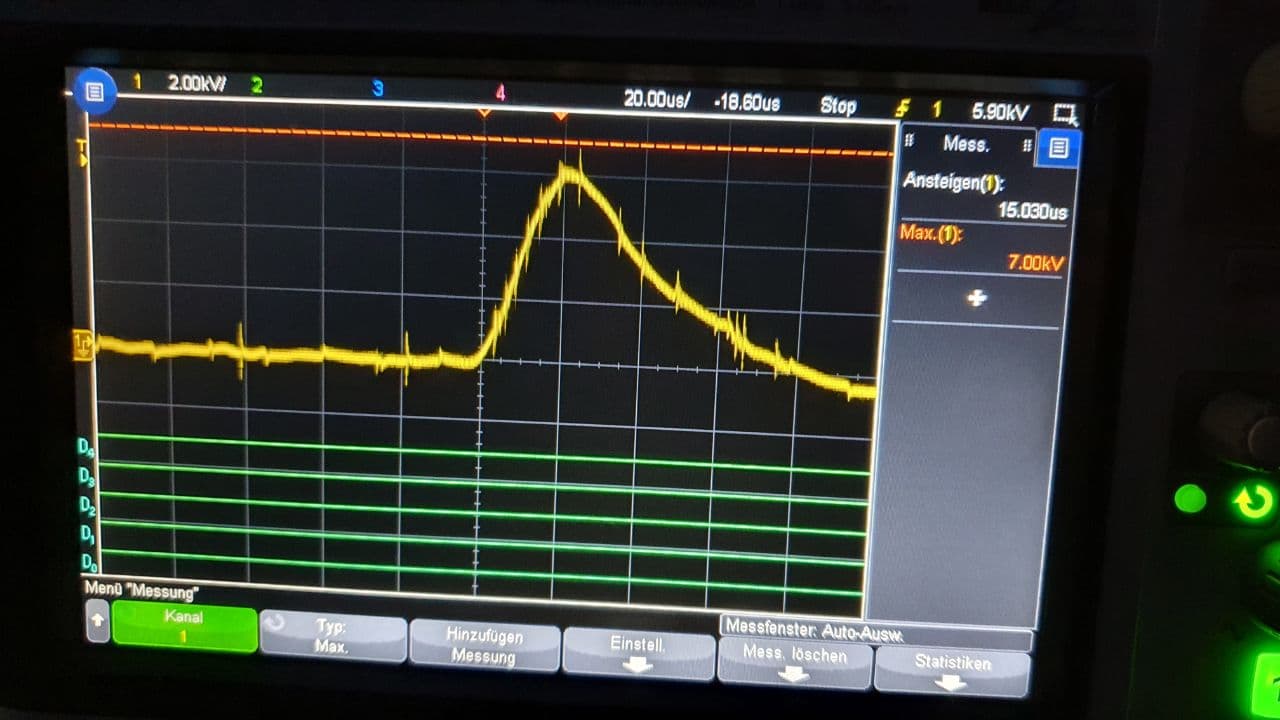
The results show us the general shape of an energy impulse on a fence. We observe a shape that is similar to a half sinus wave. The peak voltage varies between 3 kV and around 14 kV. Additionally, we find that the rise time is in the order of 10 μs to 20 μs.&#x20;


# Versions

We developed multiple iterations until we reached the current version of Fencyboy. This page provides some useful information on previous versions.

## v1.3.1 (latest version)

<div><figure><img src="https://594445183-files.gitbook.io/~/files/v0/b/gitbook-x-prod.appspot.com/o/spaces%2FaLg9ubJIjJX24vscWnqf%2Fuploads%2Fi6MMsOXy0Y5IOXJGcCyU%2Ffencyoby_1_3_0_on_fence_post_1.jpg?alt=media&amp;token=4bbc7985-5795-4472-af93-4db307836caa" alt="" width="375"><figcaption><p>Fencyboy mounted on a fence post.</p></figcaption></figure> <figure><img src="https://594445183-files.gitbook.io/~/files/v0/b/gitbook-x-prod.appspot.com/o/spaces%2FaLg9ubJIjJX24vscWnqf%2Fuploads%2FkVDjHyh8HSy7dOegphm0%2Ffencyoby_1_3_0_on_fence_post_2.jpg?alt=media&amp;token=d83b945a-bbcd-45f9-8691-c2e2ea696c8e" alt="" width="375"><figcaption><p>Fencyboy screwed to a tree.</p></figcaption></figure></div>

The v1.3.0 improves on some bad things of the v1.2.0 version. Most importantly, it solved the voltage offset error between several Fencyboys. This defect caused multiple Fencyboys to measure highly different voltages at the same position of the fence. This improved version comes with improved peak voltage detection circuitry, making the measurement more accurate. Unfortunately, the new components also consume a lot more energy. This is why we introduced the [Smart Sleep](/technical-documentation/smart-sleep) functionality to limit power consumption.&#x20;

<figure><img src="https://594445183-files.gitbook.io/~/files/v0/b/gitbook-x-prod.appspot.com/o/spaces%2FaLg9ubJIjJX24vscWnqf%2Fuploads%2FiVSbPtgiZKvlEF39DGSn%2FRender(1).png?alt=media&amp;token=8ea29cb7-440f-41d5-89af-6213fd267572" alt="" width="563"><figcaption><p>Rendered image of a Fencyboy v1.3.1</p></figcaption></figure>

## v1.2.0

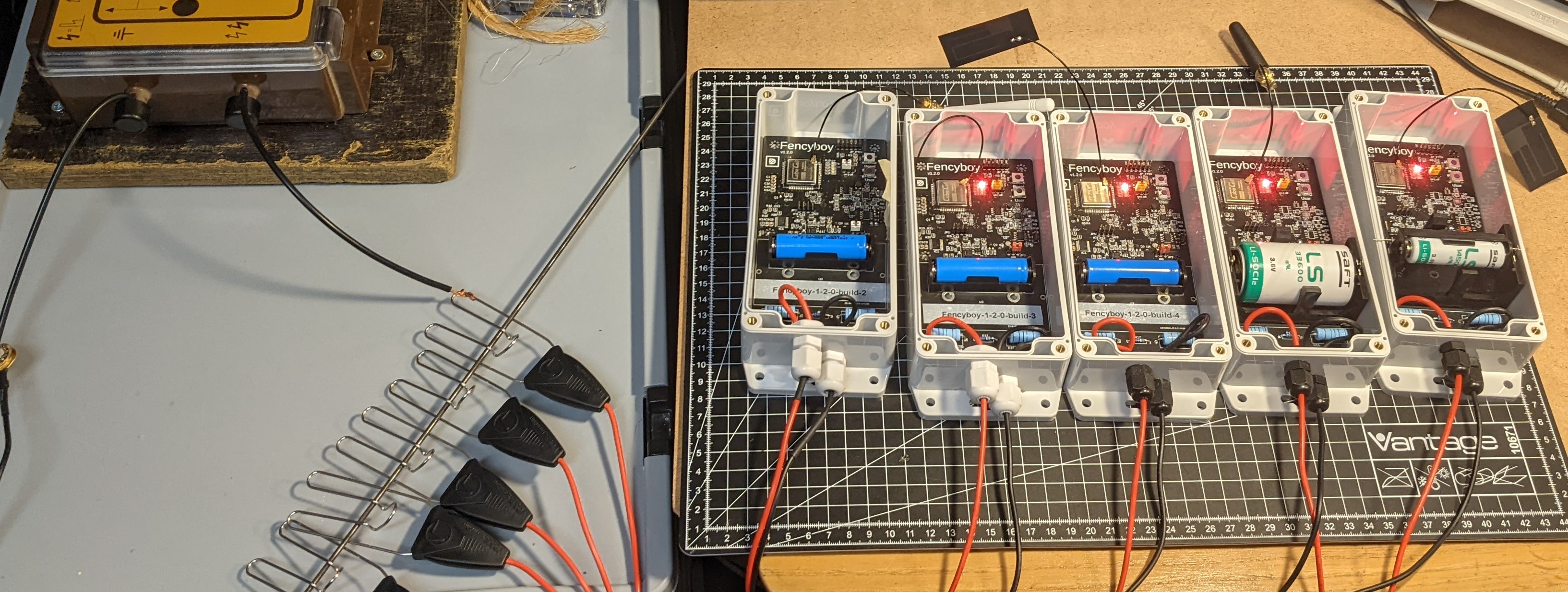
<figure><img src="https://594445183-files.gitbook.io/~/files/v0/b/gitbook-x-prod.appspot.com/o/spaces%2FaLg9ubJIjJX24vscWnqf%2Fuploads%2FBc0CjoudyDTKnrlgqgR1%2FFencyboy_v1_2_0_batch_testing.jpg?alt=media&amp;token=f9d36373-b679-4472-97c0-5dc122a0bbe5" alt="Multiple Fencyboy v1.2.0 connected to the same electric fence energizer."><figcaption><p>Multiple Fencyboy v1.2.0 connected to the same electric fence energizer.</p></figcaption></figure>

The v1.2.0 Version was the first version we made several prototypes of. Some of them with a single-use battery and others with a rechargeable battery and a solar panel. We're still running some of these in live environments. For example, the one providing the [public dashboard](https://app.datacake.de/dashboard/d/3c12e392-9fe2-40ce-94ee-14ddaaf07183) is also a v1.2.0 prototype.&#x20;

The following core components were used:

* **Heltec CubeCell Module Plus** as the main MCU and LoRa Radio. We used the Plus version because it offers more GPIO pins. We're pretty happy with this chip in total. However, we had one bad chip that just would not join the LoRaWAN network (probably caused by a hardware fault) and two other chips that had absurdly high power consumption in low-power deep sleep.&#x20;
* **Microchip MCP3461 16-Bit ADC** as the main ADC to measure the fence voltage. We downgraded from the MCP3561 with 24-Bit because of supply issues and the fact, that we don't really need the additional precision. However, we made sure that it is possible to easily go back to the MCP3561.
* **Texas Instruments LM2904 Op-Amp** for the peak voltage detection circuit. We picked this one primarily for its low quiescent current per amplifier of just 90 μA which made it possible to leave them running in deep sleep. Additionally, the slew rate of 1.5 V/μs, the input offset voltage of ±1 mV, and short-circuit current of ±40 mA were aspects we looked for.&#x20;
* **Texas Instruments LMV551 Op-Amp** for the impulse trigger circuit. Similarly to the previous op-amp, we looked for a low quiescent current per amplifier. This chip has a very low consumption of just 37 μA allowing us to leave it running in deep sleep. This is very important because we need it to detect incoming impulses at any time.&#x20;

Although we spend hours developing this version, there are some known problems:

* **Static errors** between different builds in the peak voltage measurement. We observe significant measurement differences between builds of this version if they are connected to the very same fence at the same position. One Fencyboy may constantly show 5200V while another one constantly shows 5400V. Changes are observed by all of them in a similar way but the static offset error between these builds persists. At first, we thought this was caused by the huge voltage divider and tolerances of the used resistors. But even after measuring the resistance values, with high-quality equipment, and calculating the theoretical error caused by them the situation did not really improve. At the moment we believe this is caused by the LM2904 OpAmp and the voltage sampling capacitor.&#x20;

## v1.1.0

## v1.0.0

<figure><img src="https://594445183-files.gitbook.io/~/files/v0/b/gitbook-x-prod.appspot.com/o/spaces%2FaLg9ubJIjJX24vscWnqf%2Fuploads%2FNmmfAnMnqPkx1VHKaPHi%2FFencyboy-v1_0_0_in_case.png?alt=media&amp;token=b3c29c7e-0949-4c3a-83e7-4b432d130521" alt=""><figcaption><p>Rendering of a Fencyboy v1.0.0</p></figcaption></figure>

The first PCB-based version was a failure, unfortunately. Something went wrong ordering the PCBs from our manufacturer and the GND plane was not manufactured. We had to throw away these PCBs.

<figure><img src="https://594445183-files.gitbook.io/~/files/v0/b/gitbook-x-prod.appspot.com/o/spaces%2FaLg9ubJIjJX24vscWnqf%2Fuploads%2FFJ09coKRFIlf8iCtETAU%2FFencyboy_v1_0_0_pcb.jpg?alt=media&amp;token=a5077cac-7ce1-4477-adcb-6e3755633ca5" alt=""><figcaption><p>The failed PCB that is missing a GND plane on top. Only signal traces were manufactured.</p></figcaption></figure>

## First Prototype

<figure><img src="https://594445183-files.gitbook.io/~/files/v0/b/gitbook-x-prod.appspot.com/o/spaces%2FaLg9ubJIjJX24vscWnqf%2Fuploads%2FGIhTcruBz9wFbXK1JvEm%2Ffencyboy_proto_one.jpg?alt=media&amp;token=2b086a8e-be05-415f-bbdc-c8d5040fa5bc" alt=""><figcaption><p>The first perfboard based Fencyboy prototype.</p></figcaption></figure>


# Smart Sleep

The smart sleep working mode of the Fencyboy improves power consumption significantly and is enabled by default. It can be disables in the [Config](/technical-documentation/config) by sending a downlink command for debugging purposes (see [Downlinks](/features/downlinks)).&#x20;


# Firmware Update

Guide to update the firmware running on the Fencyboy sensor using a USB programmer.

## Fencyboy v2.0.0

This guide explains how to update the firmware on a Fencyboy sensor unit using a USB-TTL converter and the serial firmware uploader web tool.

The update is normally completed in a few minutes per unit.

### Required items

You will need:

* Fencyboy sensor unit
* USB-TTL converter with 3.3 V output and 3.3 V logic level. Do **not** use a 5 V USB-TTL converter, 5 V supply, or 5 V logic signals. The converter needs only RX and TX signals.&#x20;
* Jumper wires with female ends to connect to the Fencyboy
* Computer with Windows, macOS, or Linux and standard web browser with [WebSerial support](https://caniuse.com/web-serial).
* The new `.bin` firmware file for the Fencyboy unit (which can be requested from the manufacturer)

### 1. Disconnect other power sources

Before connecting the USB-TTL converter:

* Disconnect the battery.
* Cover or disconnect the solar panel.
* Do not power the Fencyboy from the battery or solar panel during flashing.

The Fencyboy will be powered directly from the USB-TTL converter through the 3.3 V pin.

### 2. Connect the USB-TTL converter

Connect the USB-TTL converter to UART2 on the programming header of the Fencyboy.

Use the following wiring:

| 3V3     | 3V3                                  |
| ------- | ------------------------------------ |
| U2\_RXI | TX (crossover with RX from Fencyboy) |
| U2\_TXO | RX (crossover with TX from Fencyboy) |
| GND     | GND                                  |

The RX and TX lines must be crossed: Fencyboy RX goes to USB-TTL TX, and Fencyboy TX goes to USB-TTL RX. Note that the label on your USB-TTL programmer might already be swapped to account for this crossover.&#x20;

<figure><img src="https://594445183-files.gitbook.io/~/files/v0/b/gitbook-x-prod.appspot.com/o/spaces%2FaLg9ubJIjJX24vscWnqf%2Fuploads%2FC0w0i2pAuSSQoSSpuSpk%2Fusb-serial-programmer-connection.jpeg?alt=media&amp;token=98da439d-0713-4438-8228-83d9ac4b4ee0" alt=""><figcaption></figcaption></figure>

### 3. Web Serial Firmware Uploader&#x20;

Open the [Web Serial Firmware Uploader](https://firmwareupgrade.fencyboy.com/) tool on the computer with the USB-TTL programmer connected.

<figure><img src="https://594445183-files.gitbook.io/~/files/v0/b/gitbook-x-prod.appspot.com/o/spaces%2FaLg9ubJIjJX24vscWnqf%2Fuploads%2Fmn7tPzGeoOoviJX7Byav%2Fframe_chrome_mac_light.png?alt=media&amp;token=d5cd4927-fcf3-4238-b07c-2824f50d7cd7" alt=""><figcaption></figcaption></figure>

1. Click on the "Select Serial Port" button and select the USB-TTL adapter, like "FT232R USB UART".&#x20;

   <figure><img src="https://594445183-files.gitbook.io/~/files/v0/b/gitbook-x-prod.appspot.com/o/spaces%2FaLg9ubJIjJX24vscWnqf%2Fuploads%2FbyB3MOuTJVwZsBn1Hahz%2Fimage.png?alt=media&amp;token=38bc30bb-8cdf-4db5-82b7-d4970150e52b" alt="" width="375"><figcaption></figcaption></figure>
2. Click on the "Connect" button and you should see log messages appearing in the console below.&#x20;
3. You may verify the connection now by sending "AT+VER=?" via the TX textbox and you should get a response like below.

```
AT+VER=RUI_4.2.3_RAK3172-T
OK
```

<figure><img src="https://594445183-files.gitbook.io/~/files/v0/b/gitbook-x-prod.appspot.com/o/spaces%2FaLg9ubJIjJX24vscWnqf%2Fuploads%2FI4Bl6Z9ps8UptVI03dOD%2Fimage.png?alt=media&amp;token=f6332c62-8015-4255-9d32-447974b18a69" alt=""><figcaption></figcaption></figure>

### 4. The Firmware File

The firmware file has the .bin extension. You can get the file from the manufacturer.&#x20;

```
.bin
```

Example:

```
Fencyboy-v2-0-0-firmware-EU868-356ef25dd428fc2ce2db38b63b7e88a0eaf66e11.bin
```

The same firmware file can be uploaded onto multiple units because each unit has their LoRaWAN credentials like DevEUI and AppKey pre-configured and they can only be changed via AT-Commands.&#x20;

Select this file on the website through "Choose File"

<figure><img src="https://594445183-files.gitbook.io/~/files/v0/b/gitbook-x-prod.appspot.com/o/spaces%2FaLg9ubJIjJX24vscWnqf%2Fuploads%2FtXi5COBwk1kqnaotZsyn%2FScreenshot%202026-07-08%20at%2013.20.50.jpg?alt=media&amp;token=3c2e79b0-b6e9-4e2d-88f6-8feabd4a3222" alt=""><figcaption></figcaption></figure>

### 5. Upload the firmware

Having the firmware file selected and the Fencyboy connected you can click on the "Upload Firmware" button and watch the progress complete. This will take 1-2 minutes.&#x20;

<figure><img src="https://594445183-files.gitbook.io/~/files/v0/b/gitbook-x-prod.appspot.com/o/spaces%2FaLg9ubJIjJX24vscWnqf%2Fuploads%2FW46E2EiPCaCWo46krMaH%2FScreenshot%202026-07-08%20at%2013.21.13.jpg?alt=media&amp;token=9300f345-4d66-45a7-9567-76c7e9a5c74c" alt=""><figcaption></figcaption></figure>

Thats it and you are done with the update. See [#troubleshooting](#troubleshooting "mention") in case of errors.

### 7. Optional: Check the serial log after flashing

After the firmware update, the device should reboot automatically and try to join the LoRaWAN network.

You can monitor the serial output using the serial monitor shown on the website or any other tool.

Use the following serial settings:

```
Baud rate: 115200
Data format: 8N1
```

A normal startup log should show the system booting, reading battery voltage, starting LoRaWAN, and attempting to join the network.

Example output:

```
[    2275] [System] Fencyboy v2 RUI3 firmware starting
...
[    7311] [LoRaWAN] DevEUI (flash): AC1F09FFFFFFFFFF
...
[    7349] [System] Setup complete
```

### 8. Reconnect the unit

After the firmware update:

1. Disconnect the USB-TTL converter.
2. Start the unit as described in [Getting Started](/getting-started)

The device should now start normally and try to join the LoRaWAN network using the configured credentials.

### Troubleshooting

#### Device does not power on

Make sure that:

* 3V3 from the USB-TTL converter is connected.
* GND is connected.
* The USB-TTL converter can provide 3.3 V power.
* The battery and solar panel are disconnected or inactive during flashing.

#### Device flashes successfully but does not join the LoRaWAN network

Check that:

* The correct firmware file was flashed.
* The device was registered with the correct DevEUI and AppKey.
* The firmware region and frequency plan match the network configuration.
* The device has sufficient battery voltage after reconnecting the battery.
* The serial log shows join attempts after reboot.

Please contact the manufacturer in case of further problems.

## Fencyboy v1.3.1

This guide explains how to update the firmware on a Fencyboy sensor unit using a USB-TTL converter and the CubeCellFlash tool.

The update is normally completed in a few minutes per unit.

### Required items

You will need:

* Fencyboy sensor unit
* USB-TTL converter with 3.3 V output and 3.3 V logic level. Do **not** use a 5 V USB-TTL converter, 5 V supply, or 5 V logic signals. The converter should optionally provide RTS and DTR signals for automatic reset/bootloader control.
* Jumper wires with female ends to connect to the Fencyboy
* Computer with Windows, macOS, or Linux
* CubeCellFlash tool from Heltec (find the download link below)
* The correct `.cyacd` firmware file for the specific Fencyboy unit (which can be requested from the manufacturer)

### 1. Disconnect other power sources

Before connecting the USB-TTL converter:

* Disconnect the battery.
* Cover or disconnect the solar panel.
* Do not power the Fencyboy from the battery or solar panel during flashing.

The Fencyboy will be powered directly from the USB-TTL converter through the 3.3 V pin.

### 2. Connect the USB-TTL converter

Connect the USB-TTL converter to the 6-pin programming header of the Fencyboy.

Use the following wiring:

| 3V3 | 3V3                                        |
| --- | ------------------------------------------ |
| RX  | TX (crossover with RX from Fencyboy)       |
| TX  | RX (crossover with TX from Fencyboy)       |
| DTR | DTR (optional, but only together with RTS) |
| RTS | RTS (optional, but only together with DTR) |
| GND | GND                                        |

The RX and TX lines must be crossed: Fencyboy RX goes to USB-TTL TX, and Fencyboy TX goes to USB-TTL RX. Note that the label on your USB-TTL programmer might already be swapped to account for this crossover.&#x20;

The reset control lines (DTR and RTS) are optional. However, they must be treated consistently.&#x20;

Either connect both control lines or connect neither of them. Do not connect only one of RTS or DTR. The images below show the two possible configurations.&#x20;

{% columns %}
{% column %}

<figure><img src="https://594445183-files.gitbook.io/~/files/v0/b/gitbook-x-prod.appspot.com/o/spaces%2FaLg9ubJIjJX24vscWnqf%2Fuploads%2Fl4aZMD1UsvzY9Jx7FC97%2FFencyboy-Firmware-Flashing-USB-TTL-Converter-Connection-with-DTR-and-RTS.jpg?alt=media&amp;token=f52c89e2-7f2f-4fbe-a59d-bd69a75ebfc3" alt=""><figcaption></figcaption></figure>
{% endcolumn %}

{% column %}

<figure><img src="https://594445183-files.gitbook.io/~/files/v0/b/gitbook-x-prod.appspot.com/o/spaces%2FaLg9ubJIjJX24vscWnqf%2Fuploads%2F7gXioqx6hVcsK7OAmjgR%2FFencyboy-Firmware-Flashing-USB-TTL-Converter-Connection-without-DTR-and-RTS.jpg?alt=media&amp;token=d39479b8-fb4c-487a-ab6d-a010d160b6c1" alt=""><figcaption></figcaption></figure>
{% endcolumn %}
{% endcolumns %}

### 3. Download CubeCellFlash

Download the CubeCellFlash tool for your operating system from the Heltec download page:

```
https://resource.heltec.cn/download/
```

<figure><img src="https://594445183-files.gitbook.io/~/files/v0/b/gitbook-x-prod.appspot.com/o/spaces%2FaLg9ubJIjJX24vscWnqf%2Fuploads%2FhRtYd2VOuGAIxVvJDy67%2Fimage.png?alt=media&amp;token=e2422440-e059-4ac7-abfd-d418c10eeea8" alt=""><figcaption></figcaption></figure>

Download the matching archive, e.g., *CubeCellflash-0.0.1-macos.tar.gz*, for your operating system, then unpack it somewhere convenient, for example into a folder called *Fencyboy-Frimware-Update* in your Downloads folder.

### 4. The Firmware File

Copy the provided Fencyboy firmware file into the unpacked CubeCellFlash folder, i.e., *Downloads/Fencyboy-Frimware-Update*. You can get the file from the manufacturer.&#x20;

The firmware file has the extension:

```
.cyacd
```

Example:

```
Fencyboy-v1-3-1-build-100-firmware-EU868.cyacd
```

Use the firmware file that was provided for the specific unit you are flashing because it contains the LoRaWAN configuration, e.g., DevEUI.&#x20;

### 5. Find the serial port

Connect the USB-TTL converter to your computer.

The serial port may appear as something like:

On Windows:

```
COM5
```

On macOS:

```
/dev/cu.usbserial-0001
```

On Linux:

```
/dev/ttyUSB0
```

or

```
/dev/ttyACM0
```

### 6. Flash the firmware

Open a terminal or command prompt and navigate into the *Downloads/Fencyboy-Frimware-Update* folder.

Run the flashing command using the correct serial port and firmware filename. You can adapt the examples below.&#x20;

{% hint style="info" %}
If RTS and DTR are not connected you need to press the buttons manually before issuing the command below.&#x20;

* Hold down the USER button on the Fencyboy.
* Press and release the RESET button.
* Start the CubeCellFlash command from the terminal.
* Keep holding the USER button until the upload is in progress.
* Release the USER button during the upload process.
* After the upload is complete, press RESET once.
  {% endhint %}

#### macOS / Linux example

```
./CubeCellflash -serial "/dev/cu.usbserial-0001" Fencyboy-v1-3-1-build-100-firmware-EU868.cyacd
```

#### Windows example

```
CubeCellflash.exe -serial "COM5" Fencyboy-v1-3-1-build-100-firmware-EU868.cyacd
```

During flashing, the output should show the bootloader initialization, upload progress, checksum verification, and reboot.

A successful flash should look similar to this:

```
Initialising bootloader.
Silicon ID ..., revision 0.
Verifying rows.
Starting upload.
Uploading ( 10 / 100 )
Uploading ( 20 / 100 )
...
Uploading ( 100 / 100 )
Checksum verifies OK.
Rebooting.
Total upload time 14.35s
```

<figure><img src="https://594445183-files.gitbook.io/~/files/v0/b/gitbook-x-prod.appspot.com/o/spaces%2FaLg9ubJIjJX24vscWnqf%2Fuploads%2FjfBrV0inODOkJ8YhhqvA%2Fimage.png?alt=media&amp;token=d92a7126-36e6-4e6c-a4ee-6bc942b32b8c" alt=""><figcaption></figcaption></figure>

Thats it and you are done with the update. See [#troubleshooting](#troubleshooting "mention") in case of errors.

### 7. Optional: Check the serial log after flashing

After the firmware update, the device should reboot automatically and try to join the LoRaWAN network.

You can monitor the serial output using a serial monitor such as:

* PuTTY
* Arduino IDE Serial Monitor
* PlatformIO Serial Monitor
* Any other terminal program

Use the following serial settings:

```
Baud rate: 115200
Data format: 8N1
```

A normal startup log should show the system booting, reading battery voltage, starting LoRaWAN, and attempting to join the network.

Example output:

```
[System] Starting...
[ADC] Battery voltage 3.417V
LoRaWAN EU868 Class A start!
[Communication] Device EUI: 70000000000000
[Communication] Joining...
```

### 8. Reconnect the unit

After the firmware update:

1. Disconnect the USB-TTL converter.
2. Start the unit as described in [Getting Started](/getting-started)

The device should now start normally and try to join the LoRaWAN network using the configured credentials.

### Troubleshooting

#### CubeCellFlash reports a timeout

Try the following:

* Unplug and reconnect the USB-TTL converter.
* Check that the correct serial port is used.
* Check that RX and TX are crossed.
* Check that the USB-TTL converter uses 3.3 V supply and 3.3 V logic levels.
* If RTS and DTR are not connected, use the manual USER/RESET button sequence.
* If using RTS and DTR, make sure both are connected as described above. Do not use RTS or DTR alone, only in combination.&#x20;

#### Device does not power on

Make sure that:

* 3V3 from the USB-TTL converter is connected.
* GND is connected.
* The USB-TTL converter can provide 3.3 V power.
* The battery and solar panel are disconnected or inactive during flashing.

#### Device flashes successfully but does not join the LoRaWAN network

Check that:

* The correct firmware file was flashed.
* The device was registered with the correct DevEUI and AppKey.
* The firmware region and frequency plan match the network configuration.
* The device has sufficient battery voltage after reconnecting the battery.
* The serial log shows join attempts after reboot.

Please contact the manufacturer in case of further problems.